How to setup URL Parameter Tracking on Surface Forms
Last updated: July 30, 2026
Setup URL Parameter Tracking
Surface Forms automatically capture page URLs and query parameters (including for partial form submissions). This means you do not need to add hidden fields to track URL slugs or query parameters — they are already collected by default.
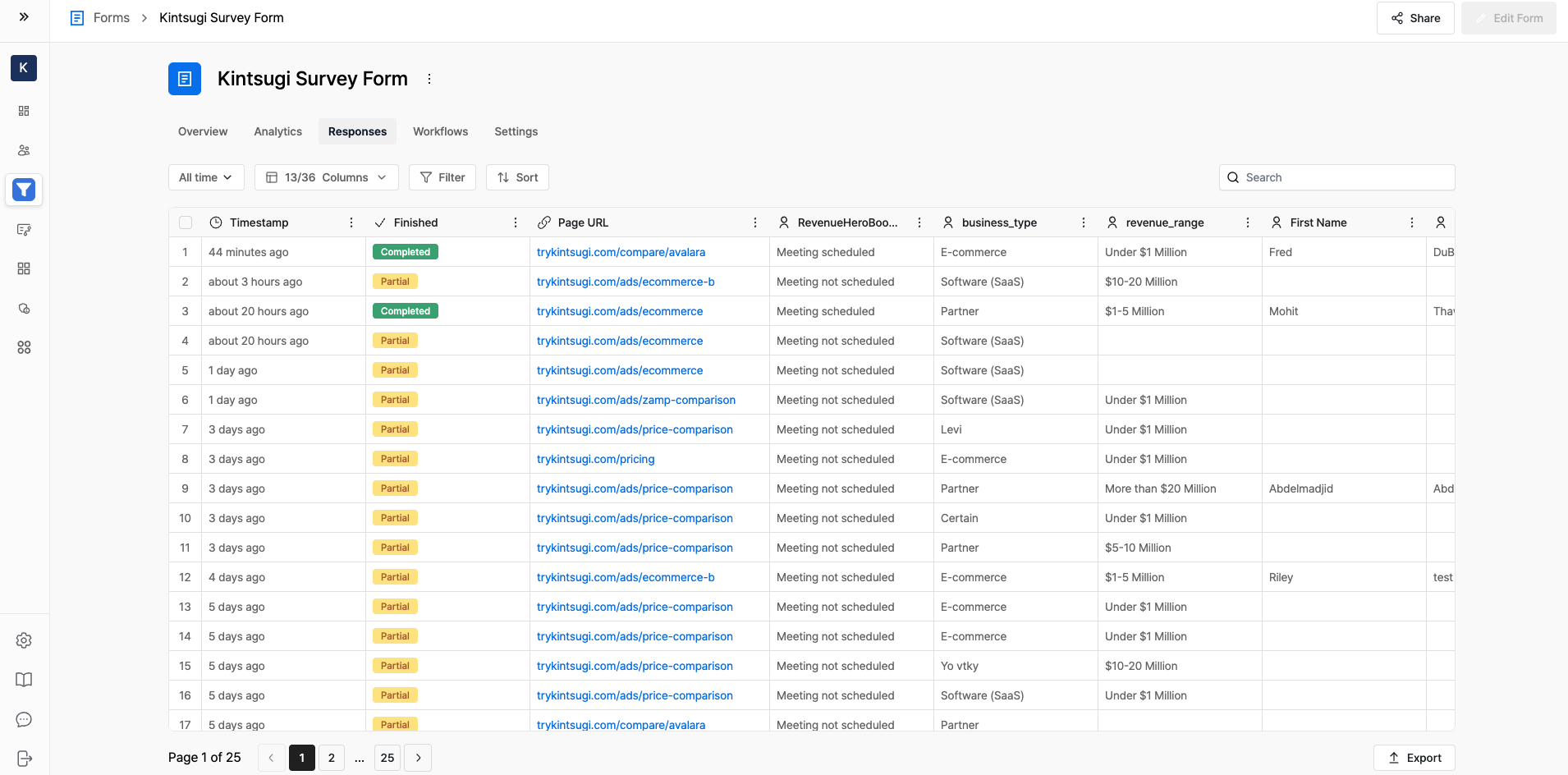
To view captured URL data in your form responses, follow these steps:
Open your Surface Form responses table.
Click the Columns filter to manage visible columns.
Enable the Page URL column to see the full page URL for each response.
For URL parameters you want to pass to downstream tools (e.g., HubSpot via a workflow), these can be configured as selectable options in the workflow builder. Supported parameters include UTM parameters, gclid, fbclid, and others.
Usage
Once the Page URL column is enabled, it will appear alongside other response data in your form responses table, allowing you to filter and analyze submissions by landing page.
To use captured URL parameters (such as fbclid or gclid) in automations:
Open the Workflow Builder for your Surface Form.
In the relevant action (e.g., Create Form Response in HubSpot), look for the URL parameter options such as
gclid,fbclid, or UTM parameters.Select the desired parameter to map it to the appropriate field in your connected tool.
Note: Surface Forms do not currently support adding custom hidden fields. If you need to track a specific value not already captured automatically, consider using the existing URL parameter capture functionality by passing the value as a query parameter in the page URL.