How do I block specific domains from submitting forms?
Last updated: July 30, 2026
Context
You may want to prevent submissions from certain email domains across your forms — for example, to block spam, low-quality leads, or specific personal or regional domains. This article explains how to manage domain blocking across all your forms in one place.
Answer
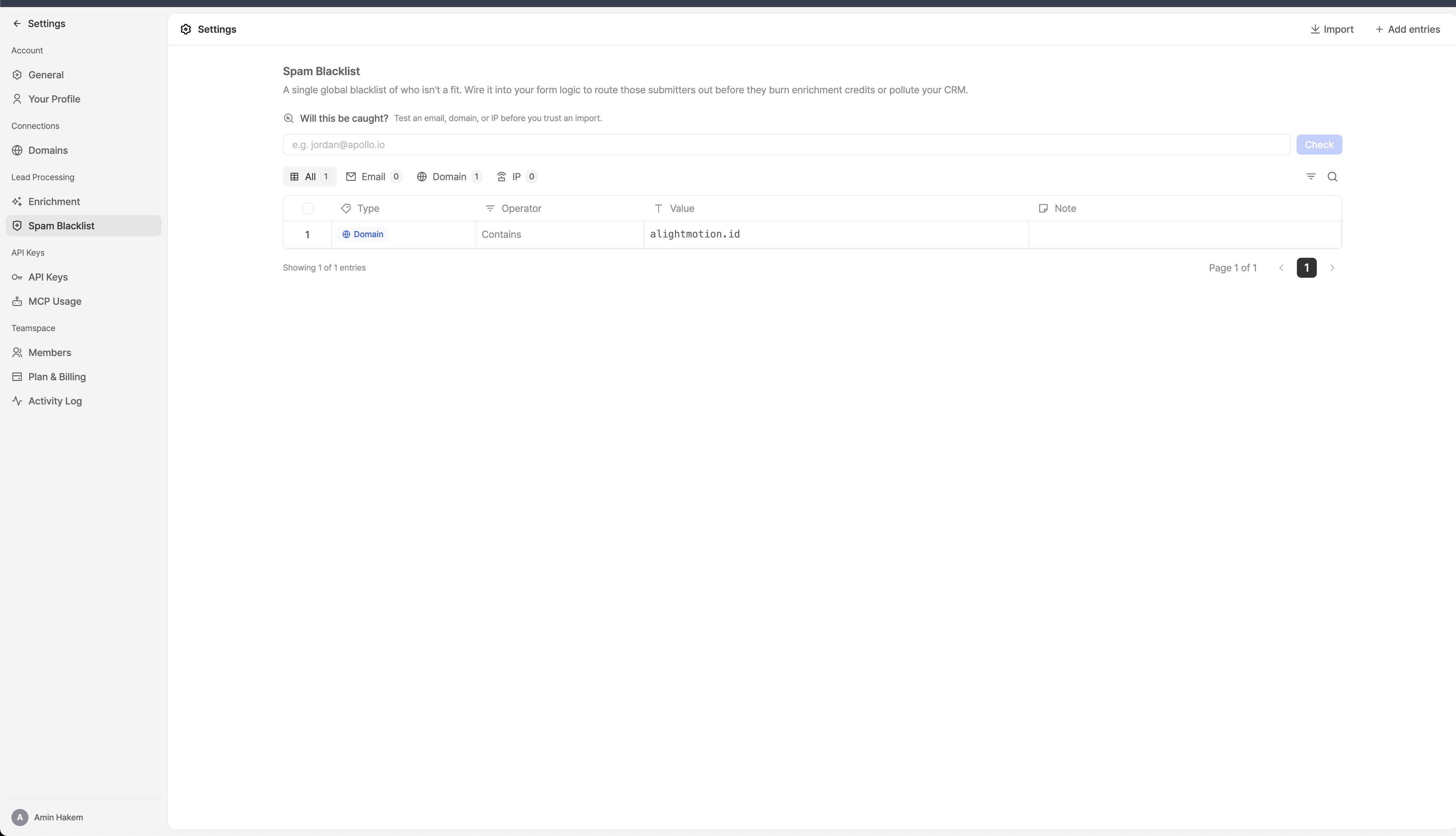
You can block domains across all forms using the Spam Protection settings in your environment. This allows you to maintain a centralized domain blocklist without having to update each form individually.
To block a domain:
Navigate to your environment's Settings and select the Spam Protection tab (e.g.,
app.withsurface.com/environments/<your-environment-id>/settings?tab=spam_protection).Add the domain(s) you want to block to the domain blocklist.
Once saved, submissions from those domains will be blocked across all forms.
If you need to block a domain on a specific form only (rather than globally), you can also update the form logic directly within the form builder for each individual form, then publish your changes.
Note: Leads who submit a form with a blocked or invalid email domain are routed to an unqualified/disqualified step and will not trigger any HubSpot workflows, ensuring junk data does not enter your CRM.